You’ve spent weeks tweaking your store. You’ve compressed every product photo for your jewelry line, uninstalled three unused apps, and yet, your Shopify Speed Score is still stuck in the "Red" zone. For high-growth fashion and streetwear brands, this isn't just a technical annoyance: it’s a conversion killer. In 2026, a one-second delay can mean the difference between a new customer and a high bounce rate.
At Thriftizer, we see this daily. Merchants often focus on the symptoms rather than the disease. If your Shopify speed optimization efforts aren't moving the needle, it’s likely because you’re fighting hidden bottlenecks that basic "speed apps" can't touch.
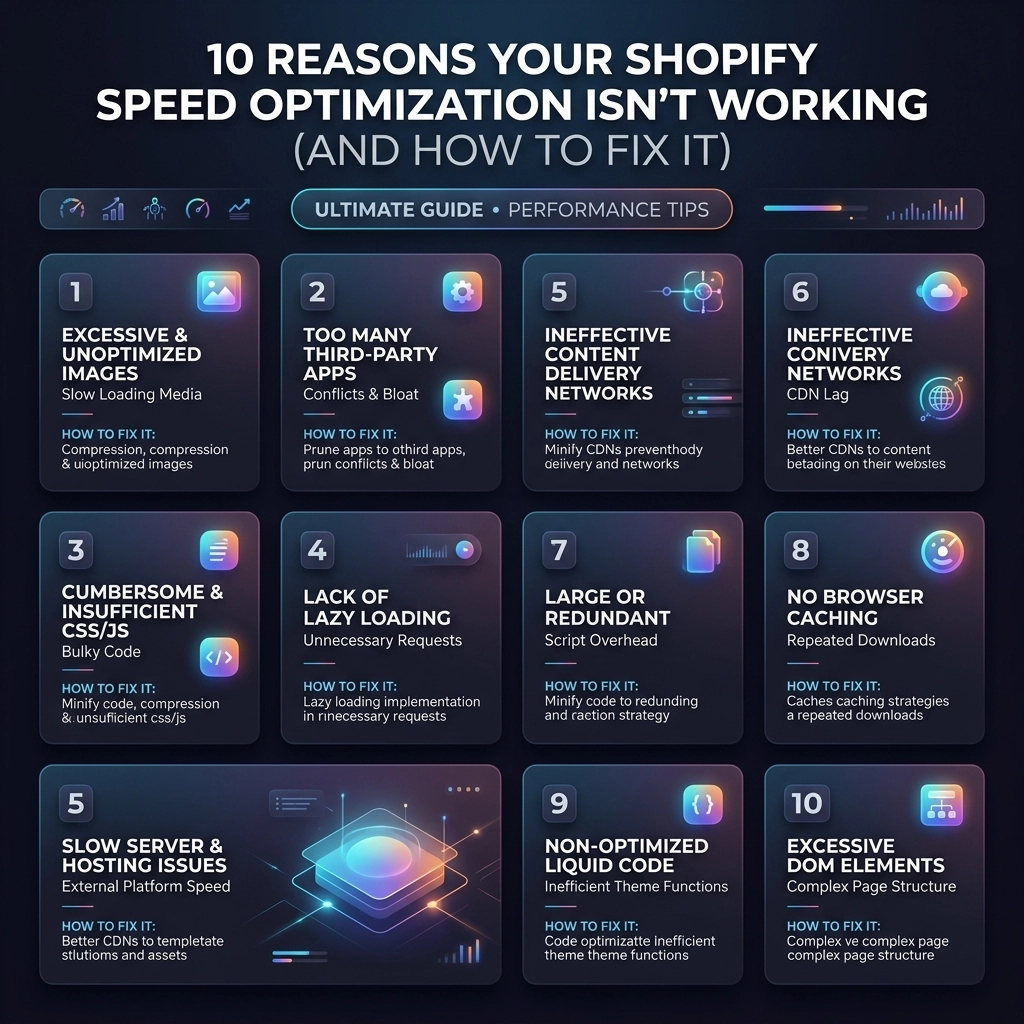
Here are the 10 real reasons your store is still slow and the professional-grade fixes to get your performance back on track.
1. You’re Obsessing Over Image Size but Ignoring JS Logic
Most merchants think "Speed = Small Images." While file size matters, modern browsers are actually quite good at handling images. The real culprit in 2026 is JavaScript (JS) execution time.
Your fancy streetwear video backgrounds, "frequently bought together" widgets, and currency converters all run on JS. Even if your images are tiny, the browser might be "frozen" while it tries to figure out which script to run first.
How to Fix It:
- Audit your scripts: Use Chrome DevTools (Performance tab) to see which scripts are blocking the main thread.
- Defer non-critical JS: Move scripts like reviews or heatmaps to load only after the user starts scrolling.
- Move to native features: If your theme supports a native "Quick View," stop using a third-party app for it.
2. The "Ghost" of Apps Past
When you uninstall a Shopify app, it doesn't always leave cleanly. Many apps inject snippets into your theme.liquid or create separate .liquid files that remain in your code forever. These "ghost" scripts still attempt to load, creating 404 errors or slowing down the server as it looks for missing assets.
How to Fix It:
- Manual Code Audit: Search your theme code for keywords like "include," "render," or specific app names you no longer use.
- Clean the Head: Check the
<head>section of yourtheme.liquidfor old tracking pixels or verification tags. - Hire a Shopify Agency: If you aren't comfortable with Liquid, a professional Shopify agency can perform a "code scrub" to remove legacy bloat without breaking your site.

3. Your High-Fashion Theme is Over-Featured
Premium themes for fashion and beauty brands often come with "everything included": mega menus, parallax scrolling, color swatches, and multiple sliders. Even if you don't use these features, the CSS and JS files for them are often still being requested by the browser.
How to Fix It:
- Disable unused theme settings: Go to your theme customizer and turn off every feature you aren't actively using.
- Conditional Loading: Work with a developer to ensure that CSS for a "Product Gallery" only loads on Product Pages, not on your Homepage.
- Custom Shopify Development: For Shopify Plus brands, consider a custom-built theme that only includes the code you actually need.
4. Third-Party Tracking is Strangling Your LCP
Marketing teams love data, but every tracking pixel (Meta, TikTok, Pinterest, GA4, Klaviyo) adds weight. If these scripts are set to load synchronously, they block your Largest Contentful Paint (LCP): the time it takes for your hero image to appear.
How to Fix It:
- Use Google Tag Manager (GTM): Consolidate your tags into one container to manage loading priorities.
- Implement Server-Side Tagging: This is a game-changer for Shopify speed optimization. By moving the processing to a server, you reduce the workload on the customer’s phone.
- Prioritize the Hero: Ensure your main banner image has a
fetchpriority="high"attribute so it loads before the tracking scripts.
5. You’re Optimizing for "Scores," Not Customers
A "100" score on Lighthouse feels great, but it doesn't always equal a fast experience for a shopper on a mid-range Android phone in a 4G area. If you use "lazy loading" on every single image, your customer might see a blank white screen while they scroll quickly through a new jewelry collection.
Key Insight: Lab data (Lighthouse) is a simulation. Field data (Core Web Vitals) is reality.
How to Fix It:
- Don't lazy-load "above the fold": Your logo and hero banner should never be lazy-loaded.
- Test on real devices: Use tools like BrowserStack or simply grab an older phone to see how your site actually feels.
- Focus on Interaction to Next Paint (INP): Ensure that when a user clicks "Add to Cart," the response is instant.

6. App Conflicts in the Cart and Checkout
High-growth brands often stack apps for discounts, gift-with-purchase, and shipping calculators. These apps frequently "fight" each other. One app updates the cart, triggering a second app to recalculate, which triggers a third. This creates a laggy experience right when the customer is most likely to convert.
How to Fix It:
- Consolidate Apps: Use one app that handles multiple functions (e.g., discounts + upsells) rather than three separate ones.
- Leverage Shopify Functions: Replace old-school "Draft Order" apps with native Shopify Functions that run on Shopify's backend infrastructure.
- Streamline Checkout: If you are on Shopify Plus, use Checkout Extensibility to keep your checkout lean and fast.
7. Inefficient Liquid Loops
In Shopify development, how code is written matters. If your theme is looping through 100 products to find 3 items with a specific tag, it’s wasting server time. This is called a "Liquid Loop" and it can significantly delay the time it takes for Shopify to send the page to the browser (TTFB).
How to Fix It:
- Use Collection Filtering: Instead of looping through all products, use Shopify’s native filtering and search objects.
- Cache where possible: Use the
{% section %}tags wisely, as Shopify has built-in caching for certain section types. - Limit "all_products" calls: Avoid calling the global
all_productsobject multiple times in one template.
8. Internationalization Bloat
Scaling a beauty brand globally is exciting, but geolocation apps and currency converters are notoriously heavy. If your store has to detect a user's IP, look up a currency, and then reload the prices, the "flicker" and delay will hurt your speed score.
How to Fix It:
- Switch to Shopify Markets: Use Shopify’s native internationalization features. They are baked into the platform and load much faster than third-party apps.
- Native Selectors: Use the native currency and language selectors provided by your theme rather than an overlay popup app.

9. Giant Video Files Without Compression
Video is essential for streetwear and fashion brands to show movement, but a 50MB background video will kill your mobile performance. Even "compressed" videos often lack the correct format for different devices.
How to Fix It:
- Use Hosted Video: Upload your videos to Shopify’s file settings and use the
video_tagfilter. This allows Shopify to serve the best format (like WebM) automatically. - Set Constraints: Never let a video auto-play on mobile unless it is heavily compressed and muted.
- Provide a Poster Image: Always have a high-quality static image that loads while the video is buffering.
10. The "Set and Forget" Mentality
Performance is not a one-time project. Every time you add a new marketing pixel or launch a "Limited Drop" section on your homepage, you are affecting speed. If you haven't audited your site in three months, it’s likely slower than it was.
How to Fix It:
- Performance Budget: Set a limit (e.g., "Our homepage will never exceed 3MB").
- Monthly Audits: Schedule a quick 30-minute review of your apps and scripts every month.
- Empower your Team: Ensure your content managers know how to export images in WebP format before uploading them.
Pros and Cons of Common Optimization Strategies
| Strategy | Pros | Cons |
|---|---|---|
| All-in-One Speed Apps | Easy to install, cheap. | Often just "hide" problems from Lighthouse; can break site logic. |
| Custom Code Minification | Cleanest results, permanent. | Requires technical knowledge; more expensive upfront. |
| Native Shopify Features | Best stability, zero extra cost. | Might have fewer "bells and whistles" than specialized apps. |
| Headless Commerce | Maximum speed, total control. | Extremely high development and maintenance costs. |
Next Steps: Your Speed Implementation Checklist
Never ever think of giving up on your store's performance. Start small, stay creative, and follow this roadmap to a faster site:
- Run a Baseline Test: Use PageSpeed Insights and record your mobile LCP and INP.
- The App Purge: Identify three apps you haven't used in 30 days and delete them.
- Clean the Code: Check your
theme.liquidfor leftover scripts from the apps you just deleted. - Optimize the Hero: Ensure your main banner is a WebP file and is NOT lazy-loaded.
- Review the Cart: Test your cart drawer on a slow 3G connection: does it feel snappy or sluggish?
- Consult an Expert: If you've hit a wall, reach out to a professional.
Pro Tip: If you're a high-growth brand, your time is better spent on design and strategy. Let an expert handle the technical debt. You can check out our Shopify Expert profile to see how we’ve helped other D2C brands scale without the lag.
At Thriftizer, we specialize in bridge-building between high-end design and technical excellence. Whether you need a full audit or custom Shopify development, we're here to help your brand move at the speed of fashion.
Ready to stop guessing and start scaling? Contact us today for a deep dive into your store's performance.
Start small, stay creative. Your customers (and your conversion rate) will thank you.