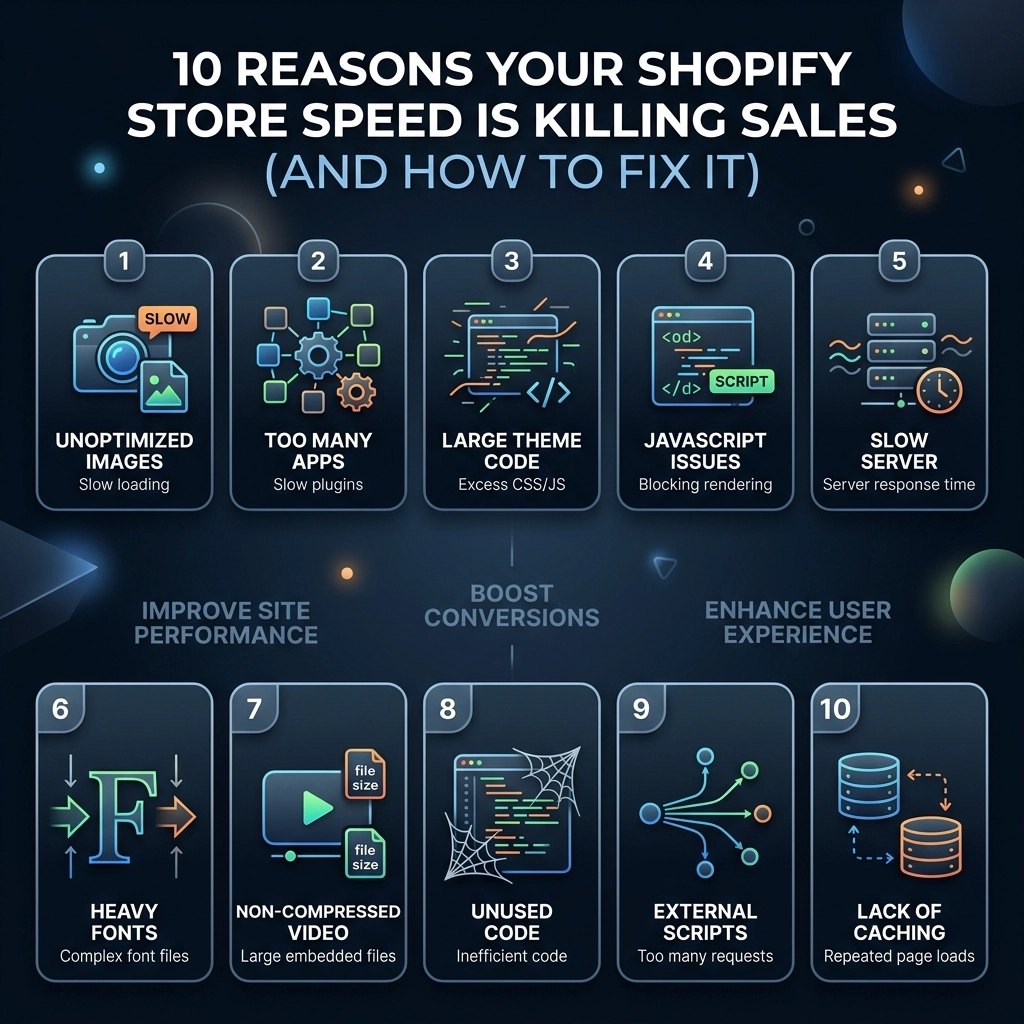
In the fast-paced world of 2026 D2C e-commerce, speed isn't just a technical metric; it is your store's heartbeat. If you are running a high-growth fashion, beauty, or jewelry brand, you know that your customers have zero patience for a lagging site. You’ve spent thousands on Meta ads and influencer partnerships, but if your landing page takes more than three seconds to load, half of that traffic: and your budget: is effectively flushed down the drain.
Research shows that a one-second delay in mobile load times can impact conversion rates by up to 27%. For a Shopify Plus store doing $100k a month, that "tiny" lag is costing you $27,000 every single month. It’s time to stop the bleeding.
This guide breaks down the ten most common speed killers we see during our Shopify speed optimization audits at Thriftizer and, more importantly, how you can fix them today to reclaim your revenue.
The High Cost of a Slow Store
Before we dive into the technicalities, let’s look at the "Discovery-Trust-Intent" framework.
- Discovery: Google and TikTok prioritize fast-loading content. A slow site kills your organic reach.
- Trust: A sluggish site feels "cheap" or insecure. High-end fashion consumers expect a premium, fluid experience.
- Intent: When a user is ready to buy, any friction (like a slow "Add to Cart") gives them time to second-guess the purchase.
1. High-Resolution "Hero" Images and Unoptimized Assets
For fashion and streetwear brands, high-quality imagery is non-negotiable. However, uploading a 5MB raw file from your professional photoshoot directly to your Shopify admin is a recipe for disaster.
The Problem: Large images increase the "Total Payload" of your page, forcing the browser to download massive amounts of data before the user can see anything.
The Fix:
- Compress everything: Use tools like TinyPNG or Optimizilla before uploading.
- Use WebP format: This modern image format provides superior compression compared to JPEG.
- Resize appropriately: If a mobile screen only displays 400px width, don't serve a 4000px image.
- Key Insight: Shopify’s CDN automatically performs some optimization, but "pre-squeezing" your assets ensures the best results.
2. The "App Trap": Ghost Scripts and Bloat
It’s tempting to install every new app that promises to "boost conversions." But every app adds a snippet of JavaScript to your theme’s <head>.
The Problem: Many apps load their scripts on every single page, even if they aren't being used. Even worse, when you uninstall an app, it often leaves "ghost code" behind that continues to slow down your site.
The Fix:
- Audit your apps: Go to your Shopify admin and delete anything you haven't used in the last 30 days.
- Consult a Shopify agency: A professional Shopify agency like Thriftizer can help you identify and manually remove residual code left by old apps.
- Consolidate features: Use multi-functional apps or, better yet, custom-code simple features directly into your theme.

3. Outdated or Bloated Shopify Themes
If you are still using a theme from the "Vintage" era (pre-Online Store 2.0), you are missing out on significant performance upgrades built into the Shopify core.
The Problem: Older themes were built for desktops and often rely on heavy libraries like jQuery, which are no longer necessary and add unnecessary weight.
The Fix:
- Upgrade to OS 2.0: Move to a modern, speed-first theme like Dawn, or invest in custom Shopify development to build a lightweight, bespoke storefront.
- Minimize liquid logic: Complex loops in your Liquid code can delay the server response time (TTFB).
4. Excessive Third-Party Tracking Scripts
Between the Meta Pixel, TikTok Pixel, Google Analytics 4, Pinterest tags, and heatmapping tools like Hotjar, your site is likely making dozens of external requests before it even renders.
The Problem: These scripts are "render-blocking," meaning the browser stops everything to fetch data from these third-party servers.
The Fix:
- Use Shopify Pixels: Leverage the new "Customer Events" API in Shopify, which runs scripts in a sandboxed environment to prevent them from slowing down the main thread.
- Defer non-essential scripts: Ensure scripts that aren't needed for the initial view (like chat widgets) only load after the page is fully interactive.
5. Lack of Image Lazy Loading
Why should a user’s phone download the 15th product image at the bottom of the collection page if they haven't even scrolled past the header?
The Problem: Loading all images simultaneously creates a bottleneck in the browser's download queue.
The Fix:
- Implement native lazy loading: Add
loading="lazy"to your image tags. - Prioritize Above-the-Fold: Never lazy-load your main hero image or logo; these should load instantly to improve your Largest Contentful Paint (LCP) score.
6. Complex Navigation and Mega Menus
For large beauty or jewelry catalogs, mega menus are great for UX, but they can be a nightmare for speed if they are poorly coded.
The Problem: Every time the menu loads, it might be fetching dozens of product images and collection links, increasing the DOM size (the complexity of the page structure).
The Fix:
- Simplify the DOM: Keep your menu structure clean.
- CSS-only Menus: Avoid using heavy JavaScript libraries just to trigger a hover effect.

7. Unminified CSS and JavaScript Files
Code is written for humans to read, which means it includes spaces, comments, and long variable names. Browsers don't need any of that.
The Problem: Unminified files are larger than they need to be, taking longer to travel from the server to the user.
The Post-2026 Fix:
- While Shopify automatically minifies some files, custom scripts added by developers often aren't. Ensure your Shopify development team uses build tools like Vite or Webpack to minify all assets during the deployment process.
8. Web Font Overload
Branding is vital for fashion, and it’s tempting to use five different weights of a custom brand font.
The Problem: Each font file is an extra 50-100kb. If you load "Light," "Regular," "Medium," "Bold," and "Extra Bold," you’ve added half a megabyte of data before a single word is read.
The Fix:
- Stick to two weights: Usually, Regular and Bold are enough.
- Use system fonts: Consider using system fonts (like San Francisco or Roboto) for body text and reserving custom fonts for headings.
- Font-display: swap: This CSS property allows the browser to show a fallback font while the custom one is loading, preventing the "Flash of Invisible Text."
9. Excessive Redirects
If you’ve recently migrated from another platform or deleted old collections, you might have a chain of redirects.
The Problem: Each redirect adds a "round trip" to the server, adding hundreds of milliseconds to the load time.
The Fix:
- Clean up your URL redirects: Go to Online Store > Navigation > View URL Redirects and remove unnecessary links.
- Avoid Redirect Chains: Ensure
Page Agoes directly toPage C, rather thanPage A->Page B->Page C.
10. Poor Mobile UI/UX Logic
Since 70% of Shopify traffic is now mobile, a "desktop-first" approach is the fastest way to lose sales.
The Problem: Serving high-resolution desktop banners to mobile devices or using "Quick View" modals that take ages to pop up.
The Fix:
- Mobile-first assets: Upload separate, vertically-cropped images for mobile users.
- Reduce Layout Shift: Ensure elements don't jump around as the page loads (Cumulative Layout Shift). This is a major Google ranking factor in 2026.

The Pros and Cons of DIY vs. Professional Optimization
| Feature | DIY Optimization | Professional Agency (Thriftizer) |
|---|---|---|
| Cost | Free / Low Cost | Investment required |
| Depth | Surface level (apps/images) | Deep dive (Liquid/JS/Database) |
| Time | Highly time-consuming | Fast, efficient execution |
| Risk | High risk of "breaking" the theme | Safe, backed-up, expert deployment |
| Results | Incremental improvements | Significant, long-term speed gains |
Pro Tip: Never ever think of giving up on speed just because it seems technical. Start small, stay creative, and focus on the images first.
Next Steps: Your Speed Implementation Checklist
If you're ready to stop killing your sales, follow this transition from consumption to implementation:
- Run a Baseline Test: Use Google PageSpeed Insights and Shopify’s built-in speed report to see where you stand.
- Audit Your Apps: Delete three apps you haven't used this month.
- Optimize the Hero: Compress your homepage hero image and convert it to WebP.
- Check for Ghost Code: Search your
theme.liquidfile for scripts belonging to uninstalled apps. - Review Mobile Experience: Browse your store on a 4G connection (not Wi-Fi) to feel the "real-world" lag.
- Consult the Experts: Reach out to an authorized Shopify agency to handle the heavy lifting.
At Thriftizer, we specialize in high-performance Shopify speed optimization for D2C brands that refuse to settle for average. Whether you are on Shopify Plus or just starting your scaling journey, we provide the technical edge you need to outpace the competition.
Ready to turn your slow store into a high-conversion machine? Visit Thriftizer today or check out our official Shopify Expert profile to see how we’ve helped fashion brands like yours achieve lightning-fast load times.
Speed is the foundation of your digital storefront. Don't let a slow site be the reason your brand stops growing. Build for speed, build for the future.