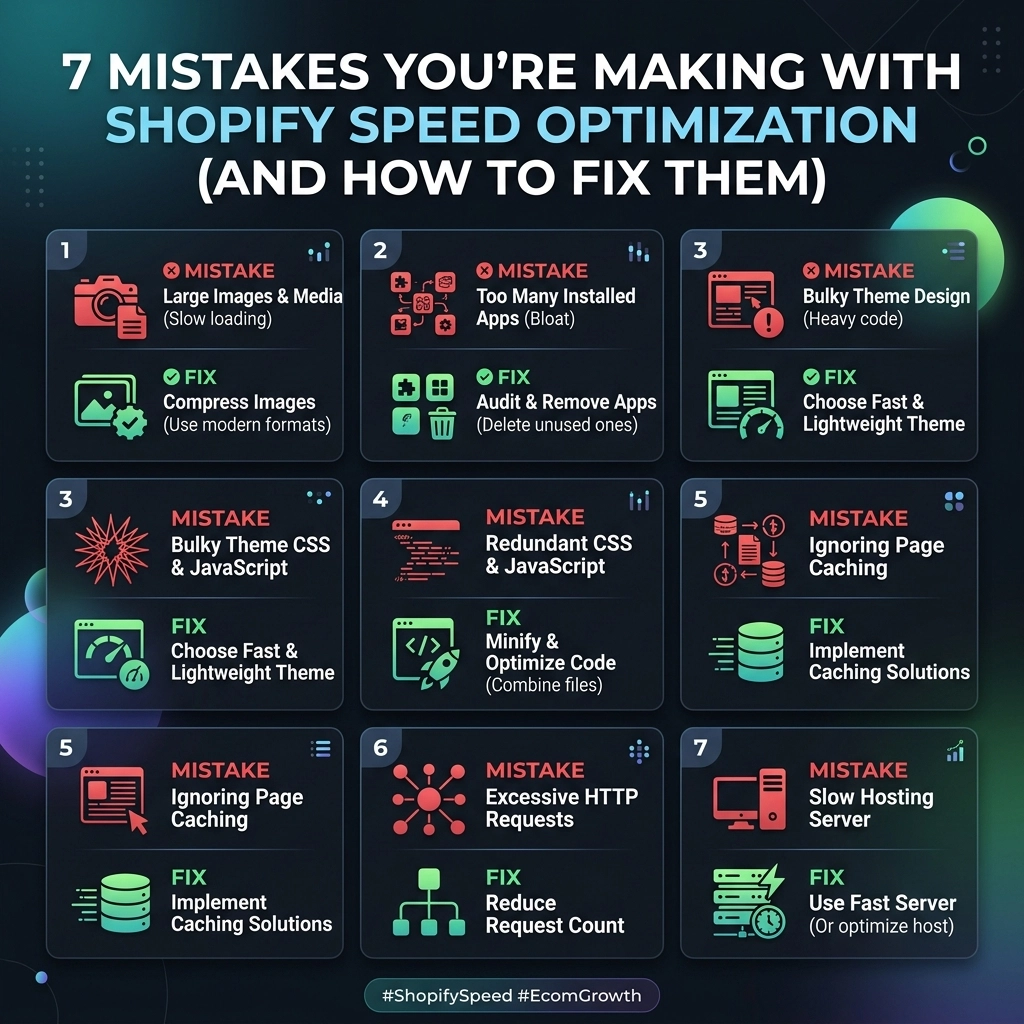
In the high-stakes world of high-growth fashion and streetwear, speed isn't just a technical metric: it’s a massive driver of revenue. If your Shopify store takes more than three seconds to load, you aren't just losing "users"; you are losing customers to competitors who have a more seamless experience.
When scaling a brand, the instinct is often to add more: more features, more high-res lookbook images, and more apps to boost conversions. But this "more is better" approach often leads to a bloated, sluggish site that kills your mobile conversion rates. Whether you are running a Shopify Plus store or just starting to scale, understanding Shopify speed optimization is crucial for staying competitive in 2026.
Let's dive into the seven most common mistakes store owners make and, more importantly, how to fix them for good.
1. Installing “Speed Booster” Apps Blindly
It sounds ironic, doesn’t it? You install an app to make your site faster, but it actually slows it down. This is the single most common mistake we see at our Shopify agency. Many "all-in-one" speed apps work by injecting heavy JavaScript and CSS into your theme files. While they might improve a single metric (like pre-loading a page), they often increase the total number of third-party requests, leading to a "heavy" feel for the user.
The Fix: Audit and Manual Cleanup
Instead of looking for a magic-bullet app, take a manual approach:
- Audit Your Apps: Go to your Shopify admin, list every installed app, and ask: "Is this essential for revenue?" If it hasn't been used in 30 days, delete it.
- Remove Leftover Code: Many apps leave "ghost code" behind after uninstallation. Check your
theme.liquidand snippets for old references to apps you no longer use. - Consult a Developer: If you aren't comfortable touching Liquid code, hiring a Shopify development expert to perform a code cleanup is often cheaper and more effective than a monthly app subscription.
2. Ignoring Image Optimization for Fashion Branding
For jewelry and streetwear brands, high-quality visuals are non-negotiable. However, uploading 5MB raw images straight from a photoshoot is a recipe for disaster. On the flip side, some owners over-compress images, making their luxury products look cheap and blurry.

The Fix: The "Goldilocks" Compression Method
You want your images to be "just right": high quality but low weight.
- Use WebP Format: Modern browsers love WebP. It offers better compression than JPEG or PNG without sacrificing quality.
- Set Size Limits: Product images should rarely exceed 300KB. For hero banners, aim for under 500KB.
- Resize Before Uploading: If your theme only displays a product image at 1200px, don't upload a 4000px file. Your browser has to work harder to resize it on the fly, which kills performance.
Key Insight: Never let your brand aesthetic suffer for speed, but never let your speed suffer for laziness. Tools like TinyPNG or Squoosh are your best friends here.
3. Lazy Loading the Wrong Assets
Lazy loading is a technique where images only load when they are about to enter the viewport (the part of the screen the user is looking at). It’s great for performance, but many store owners apply it to everything: including the hero banner.
When you lazy load your main hero image or your logo, you increase your Largest Contentful Paint (LCP), which is a core web vital that Google uses for ranking. The browser has to wait for a script to trigger before it even starts downloading the most important image on the page.
The Fix: Targeted Implementation
- Above-the-Fold: Ensure your logo, main hero banner, and the first row of product images on a PDP (Product Detail Page) are not lazy loaded. Use
loading="eager"for these. - Below-the-Fold: Apply
loading="lazy"to all images in the footer, the bottom half of collection pages, and secondary gallery images. - Native over Script: Whenever possible, use native browser lazy loading rather than heavy JavaScript libraries.
4. Letting Font and Script Bloat Run Wild
High-growth brands love custom fonts. While they are great for branding, loading five different weights of a custom font family adds significant weight to your page load. Similarly, tracking pixels (Facebook, TikTok, Pinterest, Google Analytics) all add up.

The Fix: Simplify Your Tech Stack
- Stick to Two Families: Use one font for headings and another for body text. Use minimal weights (e.g., 400 and 700).
- System Fonts: Consider using system fonts (like Arial or Helvetica) for body text. They load instantly because they are already on the user's device.
- Defer Scripts: Use the
deferorasyncattribute on non-critical scripts. This tells the browser to keep loading the page and handle the script later.
5. Focusing Only on the Homepage
Most Shopify speed optimization efforts are focused on the homepage because that’s what owners see first. However, if you are running ads, your customers are likely landing on Collection Pages or Product Pages.
If your homepage is lightning fast but your product page takes 6 seconds to load the "Add to Cart" button, your bounce rate will skyrocket.
The Fix: Optimize the "Money" Pages
- Test Specific URLs: Use PageSpeed Insights to test a high-traffic product page and a large collection page.
- Mobile-First Testing: Since over 70% of Shopify traffic usually comes from mobile (especially in fashion), always prioritize mobile scores over desktop.
- Check the Cart: Ensure your AJAX cart drawers are snappy. A delay in the cart opening is a major friction point that leads to abandoned sessions.
6. Ignoring Redirect Chains and Broken Links
As you scale, you delete old products and change collection names. This often creates "redirect chains" (Page A redirects to Page B, which then redirects to Page C). Each jump adds server response time. Worse, broken 404 links consume "crawl budget" and frustrate users.
The Fix: Clean Up Your Navigation
- Audit Redirects: In your Shopify admin under Online Store > Navigation > URL Redirects, look for chains. Update them so Page A points directly to Page C.
- Fix 404s: Use a tool like Screaming Frog or a dedicated Shopify app to find broken links and fix them immediately.
Pro Tip: If you're looking for a deep dive into how to manage complex workflows, check out our guide on automating YouTube workflows to see how we think about efficiency across platforms.
7. Treating Speed as a One-Time Project
This is the "set it and forget it" mistake. You hire a Shopify agency to optimize your store, get a 90/100 score, and then spend the next three months adding five new apps and ten high-res videos. By month four, your score is back in the 40s.
The Fix: Build a Performance Culture
Speed is a habit, not a destination.
- The "One-In, One-Out" Rule: If you want to add a new app, see if you can remove an old one.
- Monthly Audits: Spend 30 minutes every month checking your Shopify Speed Report.
- Development Standards: If you are working with a developer for Shopify Plus features, make performance a KPI for every new feature build.
Challenges: The Balancing Act
Optimizing for speed isn't always easy. Here are a few challenges you might face:
- Aesthetics vs. Performance: High-end fashion brands often want autoplay videos and parallax effects. These are heavy. You’ll have to decide when the visual "wow" factor is worth the performance hit.
- App Dependency: Sometimes an app is essential for your business logic (like a complex tiered discount app). In these cases, you can't just delete it; you have to work with a developer to optimize how it loads.

Next Steps: Your Shopify Speed Checklist
Ready to stop making these mistakes? Follow this step-by-step implementation plan:
- Baseline Test: Run your site through Google PageSpeed Insights and WebPageTest. Record your current scores for mobile and desktop.
- The Great App Purge: Uninstall every app that isn't helping you make money today.
- Image Clean-up: Use a bulk image optimizer to convert existing assets to WebP and compress them.
- Check Your Theme: Ensure your theme is updated. Newer Shopify themes (Online Store 2.0) are built with performance in mind.
- Technical Deep Dive: If your scores are still low, it’s time for custom development. Check out our Shopify Expert profile to see how we help brands achieve elite performance.
- Set Alerts: Use monitoring tools to alert you if your site speed drops below a certain threshold.
Shopify speed optimization doesn't have to be a headache. By avoiding these seven common pitfalls, you’re not just chasing a higher score: you’re building a better, more profitable experience for your customers. Start small, stay creative, and remember: every millisecond counts.
If you're ready to take your store to the next level, contact Thriftizer today. We specialize in helping D2C brands scale without the bloat. Let's make your store the fastest in your niche.