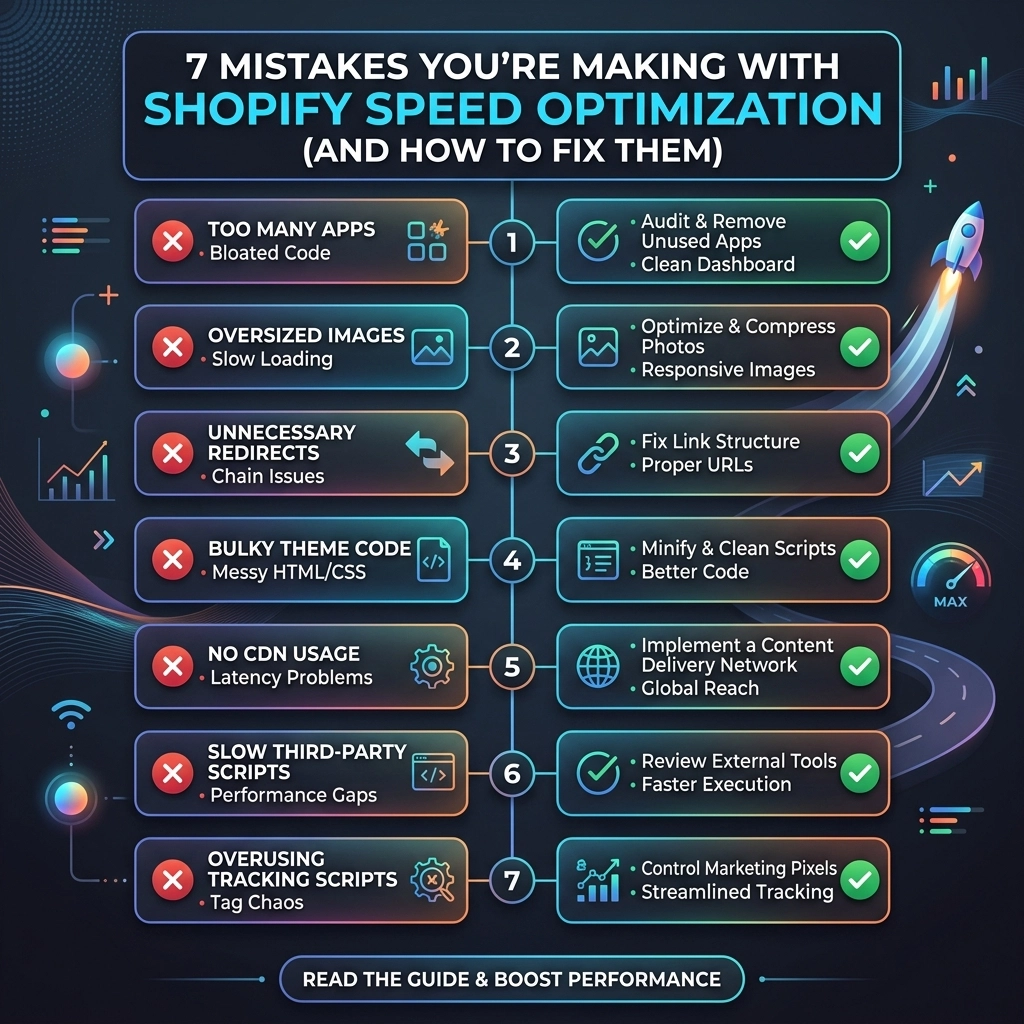
In the high-stakes world of D2C fashion and streetwear, a single second can be the difference between a multi-thousand dollar checkout and a frustrated "bounce." You’ve spent months perfecting your collection, hiring the right models, and running high-conversion ads, only to lose customers because your site takes five seconds to load.
Speed isn't just a technical metric; it is your store’s first impression. For high-growth brands, Shopify speed optimization is the engine that drives scaling. If your site is slow, your ROAS (Return on Ad Spend) suffers, your SEO rankings dip, and your brand authority vanishes.
At Thriftizer, we’ve audited hundreds of Shopify Plus stores. We consistently see the same seven mistakes that throttle performance. The good news? They are all fixable. Let’s dive into how you can reclaim your site’s speed and boost your conversion rates.
1. The "App Hoarding" Syndrome
It starts innocently. You want a countdown timer for a flash sale. Then a spin-to-win wheel. Then a secondary product recommendation engine. Before you know it, your Shopify store is running 25 different apps, each injecting its own heavy JavaScript into your theme.
The Mistake: Every app you install adds "weight" to your page. Even if you uninstall an app, many leave behind "ghost code" or orphaned snippets in your theme.liquid file that continue to slow down your site.
The Fix:
- Audit your apps monthly: If an app isn't directly contributing to revenue or essential customer experience, delete it.
- Use native features: Shopify’s Online Store 2.0 themes now include many features (like product recommendations or basic popups) that previously required third-party apps.
- Consolidate: Choose multi-functional apps that handle several tasks rather than five individual apps.
Pro Tip: Before installing a new app, ask your Shopify development team if the feature can be custom-coded. Custom code is almost always lighter and faster than a third-party app wrapper.
2. Using Oversized, Non-Optimized Images
Fashion and jewelry brands rely on stunning, high-resolution visuals. However, uploading a 5MB RAW file directly from your photoshoot is a recipe for disaster.
The Mistake: Serving images that are physically larger than they need to be or using outdated formats like PNG for simple lifestyle shots.
The Fix:
- Convert to WebP: WebP offers superior compression compared to JPEG and PNG. Shopify now supports this natively, but you should ensure your theme handles the delivery correctly.
- Define Dimensions: Don’t force the browser to resize a 4000px image into a 400px container. Resize images to their maximum display size before uploading.
- Compress: Use tools like TinyPNG or specialized Shopify apps to strip metadata and compress files without losing visual quality.

3. Ignoring the "Above-the-Fold" Priority
When a user lands on your homepage, they don't need to see the Instagram feed at the bottom of the page immediately. They need to see the hero banner and the navigation.
The Mistake: Your site tries to load every single asset: from the footer icons to the review widgets: all at once. This blocks the "Critical Rendering Path," making the user wait in front of a white screen.
The Fix:
- Implement Lazy Loading: This ensures that images and videos only load as the user scrolls down to them.
- Prioritize LCP (Largest Contentful Paint): Ensure your main hero image loads instantly. Avoid using sliders or carousels for your hero section, as they are notorious for slowing down LCP.
- Preconnect to Important Origins: Tell the browser to establish a connection to your font files or essential third-party scripts early.
4. Relying on Bloated "Kitchen-Sink" Themes
Many store owners buy premium themes from marketplaces because they come with 50+ built-in features. While this sounds like a great deal, it’s often a performance nightmare.
The Mistake: These themes are built to cater to everyone, meaning they load code for features you aren't even using. This "bloat" is hard to strip away once you’ve built your store on top of it.
The Fix:
- Go Lean: If you are a high-growth brand, consider a headless approach or a custom-developed theme built on Shopify’s "Dawn" framework.
- Custom Development: Work with a specialized Shopify agency to build a theme that only includes the code your specific brand needs.
- Clean Your Code: Regularly have a developer audit your CSS and JavaScript files to minify them and remove unused styling.
5. Too Many External Fonts and Scripts
Typography is a huge part of fashion branding. However, fetching five different weights of a custom font from Google Fonts or Adobe Typekit adds significant latency.
The Mistake: Loading multiple external font families and third-party tracking scripts (TikTok pixel, Meta pixel, Pinterest tag, Hotjar, etc.) directly in the header.
The Fix:
- Limit Font Variations: Stick to two font families and a maximum of three weights.
- Self-Host Fonts: Whenever possible, host font files directly on Shopify’s servers to reduce DNS lookups.
- Use Google Tag Manager (GTM): Consolidate your tracking pixels into GTM to manage how and when scripts fire.

6. Neglecting the Mobile Experience
In 2026, over 80% of fashion e-commerce traffic comes from mobile devices. Yet, many brand owners still check their site speed on a high-speed MacBook Pro in an office.
The Mistake: Optimizing only for desktop. Mobile devices have slower processors and often rely on inconsistent 4G/5G networks. A site that feels "okay" on a desktop can be unusable on a mobile device.
The Fix:
- Test on "Slow 4G": Use Chrome DevTools to throttle your network speed and see how your site actually performs for a customer on the go.
- Simplify Mobile Layouts: Remove heavy video backgrounds or complex animations for mobile users.
- Reduce Interstitials: Popups that take over the whole screen on mobile not only slow down the site but also hurt your SEO.
7. Treating Speed as a One-Time Project
Speed optimization isn't a "set it and forget it" task. Every time you add a new product, change a banner, or install a tracking pixel for a weekend sale, your speed changes.
The Mistake: Running a speed audit once a year. By the time you realize the site is slow, you’ve already lost thousands in potential revenue.
The Fix:
- Set a Performance Budget: Decide that your "Time to Interactive" must always be under 3 seconds. If a new app or feature pushes it over, it doesn't stay.
- Automated Monitoring: Use tools like Google PageSpeed Insights or GTmetrix to receive regular reports.
- Hire Experts: Partner with a verified Shopify Expert to perform quarterly technical health checks.
Challenges of Speed Optimization
Optimizing a Shopify store is a game of trade-offs. You have to balance aesthetic beauty with technical efficiency.
| Aspect | The Pro-Speed Choice | The Pro-Aesthetic Choice |
|---|---|---|
| Videos | Compressed, short loops | High-bitrate, full-screen 4K |
| Fonts | System fonts (Arial, Roboto) | Custom, high-end typography |
| Apps | Minimalist, custom code | Feature-rich, interactive apps |
| Images | WebP, Lazy-loaded | Uncompressed PNGs, No lazy loading |
The Goal: You don’t have to sacrifice your brand’s soul for speed. You just need to be intentional about how you implement your vision.
Next Steps: Your 5-Day Speed Sprint
Don't let these mistakes linger. Follow this checklist to start seeing results this week:
- Day 1: The Audit. Run your site through Google PageSpeed Insights. Focus on your "Core Web Vitals."
- Day 2: The App Purge. Look at your app list. Delete anything you haven't used in the last 30 days.
- Day 3: Image Overhaul. Identify your 10 heaviest product images and replace them with optimized WebP versions.
- Day 4: Script Management. Move non-essential scripts (like chat widgets or heatmaps) to load only after the main page has finished rendering.
- Day 5: Expert Review. Consult with an agency like Thriftizer to handle the deep-level Liquid and JavaScript optimizations that require a developer's touch.
Start Small, Stay Creative
Shopify speed optimization might seem like a mountain of technical jargon, but it’s actually about respect: respecting your customer’s time and their attention span. When your store loads instantly, you remove the friction between a customer’s desire and their purchase.
Think of your website's performance as the "co-pilot" to your creative direction. One brings the beauty; the other brings the results.
Never ever think of giving up on performance because it feels too complex. Start with the small wins: optimize your images, delete those three unused apps: and build momentum from there. Your bottom line will thank you.
Ready to scale your fashion brand with a high-performance store?
Check out our work at Thriftizer Solutions and let’s build something fast together.