You’ve spent weeks tweaking your Shopify store. You’ve compressed your images, uninstalled a few apps, and maybe even tried a "speed booster" tool you found on the app store. Yet, when you run your site through Google PageSpeed Insights, that dreaded red score still stares back at you.
For high-growth fashion and beauty brands, a slow site isn't just an annoyance, it’s a conversion killer. In the world of streetwear and luxury jewelry, your customers expect a seamless, high-end experience. If your site lags, they’re gone before your hero banner even finishes loading.
At Thriftizer, we see this every day. Most merchants are doing the "obvious" things, but they’re missing the underlying technical bottlenecks that keep their Shopify speed optimization from actually sticking.
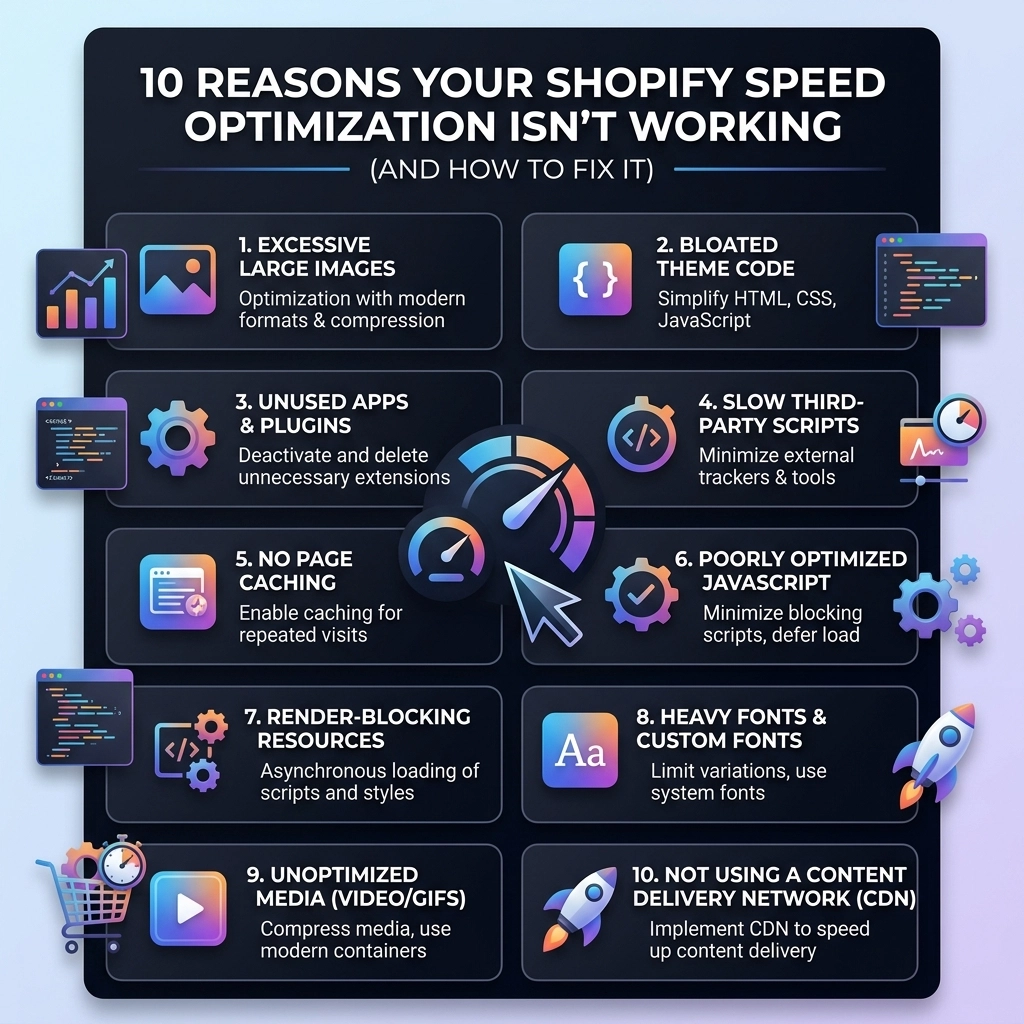
Here are the 10 real reasons your Shopify store is still slow and, more importantly, how you can fix them for good.
1. The "Ghost Code" of Uninstalled Apps
This is the most common culprit. When you click "Uninstall" on a Shopify app, the app's developers don't always clean up after themselves. Many apps inject snippets of JavaScript or CSS into your theme.liquid or other template files.
When you delete the app, that code stays behind. Your store continues to try and fetch files from a server that no longer recognizes your store, leading to "404 Not Found" errors and significant browser lag.
The Fix:
You need a manual code audit. Search your theme.liquid, product.liquid, and cart.liquid files for script tags or liquid includes that reference apps you no longer use. If you aren't comfortable editing code, a professional Shopify agency can perform a "code scrub" to remove this dead weight.
2. You’re Lazy Loading Your Hero Images
Wait, isn’t lazy loading supposed to be good? Yes, but not for everything. Lazy loading tells the browser: "Don't load this image until the user scrolls down to see it."
If you apply lazy loading to your main banner or "Hero" image (the first thing people see), you are essentially telling the browser to wait to load the most important part of your site. This destroys your Largest Contentful Paint (LCP) score, which is a massive factor in Google’s ranking algorithm.
The Fix:
Identify your "above-the-fold" images: usually your logo and your main hero banner. Ensure these images have the loading="eager" attribute or simply no lazy loading at all. You want these to start downloading the millisecond a visitor hits your URL.

3. Third-Party Script Bloat (The Tracking Trap)
D2C fashion brands love data. You likely have a Meta pixel, a TikTok pixel, Pinterest tracking, Google Analytics 4, Hotjar, and maybe a few "buy now, pay later" widgets like Affirm or Klarna.
Each of these scripts is a "third-party" request. Your store has to pause its own loading to go talk to Meta’s servers, then Google’s servers, then TikTok’s servers. If any of those servers are slow, your site is slow.
The Fix:
Use Google Tag Manager (GTM) to consolidate your scripts, or better yet, move to server-side tracking. Periodically audit your tracking pixels. If you haven't run a Pinterest ad in six months, kill the pixel. Every script must earn its place on your site.
4. Using Heavy Custom Fonts
Your branding is everything in the jewelry and streetwear niche. We get it. But loading five different weights of a custom hosted font (Light, Regular, Medium, Bold, Extra Bold) can add 500kb to 1MB of data to every page load.
The Fix:
Stick to two custom font weights max. For everything else, use System Fonts (like Arial, Helvetica, or San Francisco). System fonts are pre-installed on the user's device, meaning they load instantly with zero data transfer. If you must use custom fonts, ensure they are in the .woff2 format, which is highly compressed.
5. High-Resolution "Print Ready" Photos
We see this often with jewelry brands. You want the customer to see every sparkle, so you upload a 5MB high-res photo directly from your photographer. Shopify’s CDN does some optimization, but it can’t perform miracles on a file that large.
The Fix:
Before uploading, run your images through a tool like TinyPNG or Squash. Aim for product images under 200KB. Also, ensure your Shopify development team is using "responsive images" code, which tells the browser to load a smaller version of the image for mobile users and a larger one for desktop users.
6. The "All-in-One" Theme Trap
Many popular Shopify themes come packed with features: sliders, countdown timers, color swatches, and pop-ups. While convenient, these themes load the code for all those features, even the ones you’ve turned off. This is known as "feature bloat."
The Fix:
If your brand is scaling, it might be time to move away from bloated off-the-shelf themes. A custom-built theme or a highly optimized framework (like Dawn) allows you to include only the features you actually need. Less code equals more speed.

7. Inefficient Liquid Loops
Shopify uses a language called Liquid. Sometimes, a developer might write a "loop" that asks the store to search through every single product in your collection just to find one specific tag. If you have 1,000 products, your store is doing 1,000 checks every time a page loads.
The Fix:
Optimize your Liquid logic. Instead of looping through all products, use Shopify’s built-in filtering or move complex logic to the "search" API. Efficient Shopify speed optimization starts with clean, logical code.
8. Hidden Global Market Bottlenecks
If you use Shopify Markets to sell in different countries, your site might be calculating currency conversions, tax rules, and shipping rates in real-time. This can create a "bottleneck" where the server is crunching numbers before it can even send the page to the customer.
The Fix:
Ensure you are using Shopify Plus features where possible to handle high-volume global traffic. Cache your localized content so the server doesn't have to recalculate the price of a t-shirt in Euros for every single visitor in France.
9. Too Many App-Generated Visuals
Apps that add "Frequently Bought Together" sections, "Product Reviews" with images, or "Instagram Feeds" are notoriously slow. They often wait for your entire page to load before they "inject" their content, which causes the page to jump around (a bad Cumulative Layout Shift score).
The Fix:
Look for apps that offer "App Blocks" (Online Store 2.0). These are more integrated into Shopify's core and generally load faster. If an app is slowing you down, consider having a Shopify agency build that feature directly into your theme code.
10. Redirect Chains and Broken Links
If you recently migrated from another platform or deleted old collections, you might have redirect chains (e.g., Page A redirects to Page B, which redirects to Page C). Each jump adds hundreds of milliseconds to the load time.
The Fix:
Use a tool like Screaming Frog to crawl your site and identify 404 errors and redirect chains. Clean these up so that every link goes directly to its final destination.

Pros and Cons of Professional Shopify Optimization
When it comes to speed, you have two choices: DIY or hiring an expert.
| Feature | DIY Optimization | Professional Agency (Thriftizer) |
|---|---|---|
| Cost | Free / Low Cost | Investment required |
| Technical Depth | Surface-level (Images/Apps) | Deep-dive (Liquid/Server-side) |
| Sustainability | Speed often drops again later | Built to stay fast as you scale |
| Risk | High risk of breaking theme code | Safe, backed-up, and tested |
| Time | Can take dozens of hours | Done quickly and correctly |
The Thriftizer Approach to Scaling
Speed isn't just about a score; it's about the bottom line. For our clients in the fashion and beauty sectors, we treat speed as a core business metric. Whether we are implementing Shopify Plus features or performing custom Shopify development, our goal is always the same: make the technology invisible so the brand can shine.
If you are tired of playing "Whac-A-Mole" with your site speed, it’s time for a professional touch. You can view our work and technical capabilities on our Shopify Expert Profile or learn more about our process at Thriftizer.

Next Steps Checklist: How to Start Fixing Your Speed Today
- Run a benchmark: Use PageSpeed Insights and record your mobile score.
- The App Audit: List every app. If you haven't used it in 30 days, delete it.
- Manual Code Clean-up: Check your
theme.liquidfor leftover scripts from deleted apps. - Optimize your Hero: Ensure your main banner is not being lazy-loaded.
- Font Check: Limit your custom fonts to two weights maximum.
- Image Compression: Go back through your top 10 best-selling products and ensure their images are under 200KB.
- Consult an expert: If you’re still in the red, contact us for a technical audit.
Start small, stay creative. Speed optimization is a marathon, not a sprint. By tackling these ten points, you’ll build a faster, more resilient store that’s ready to scale into 2026 and beyond. Never ever think of giving up on your site performance( your conversion rate will thank you!)