In the fast-paced world of e-commerce, especially for fashion and beauty brands, first impressions aren't just about your latest collection: they are about how fast that collection loads. By 2026, user expectations have hit an all-time high. If your Shopify store takes more than 2.5 seconds to load, you aren't just losing "traffic"; you are actively handing your customers over to your competitors.
Speed is a silent revenue killer. A one-second delay can result in a 7% reduction in conversions. For a high-growth jewelry or streetwear brand doing $100k a month, that’s $7,000 vanishing into thin air every single month.
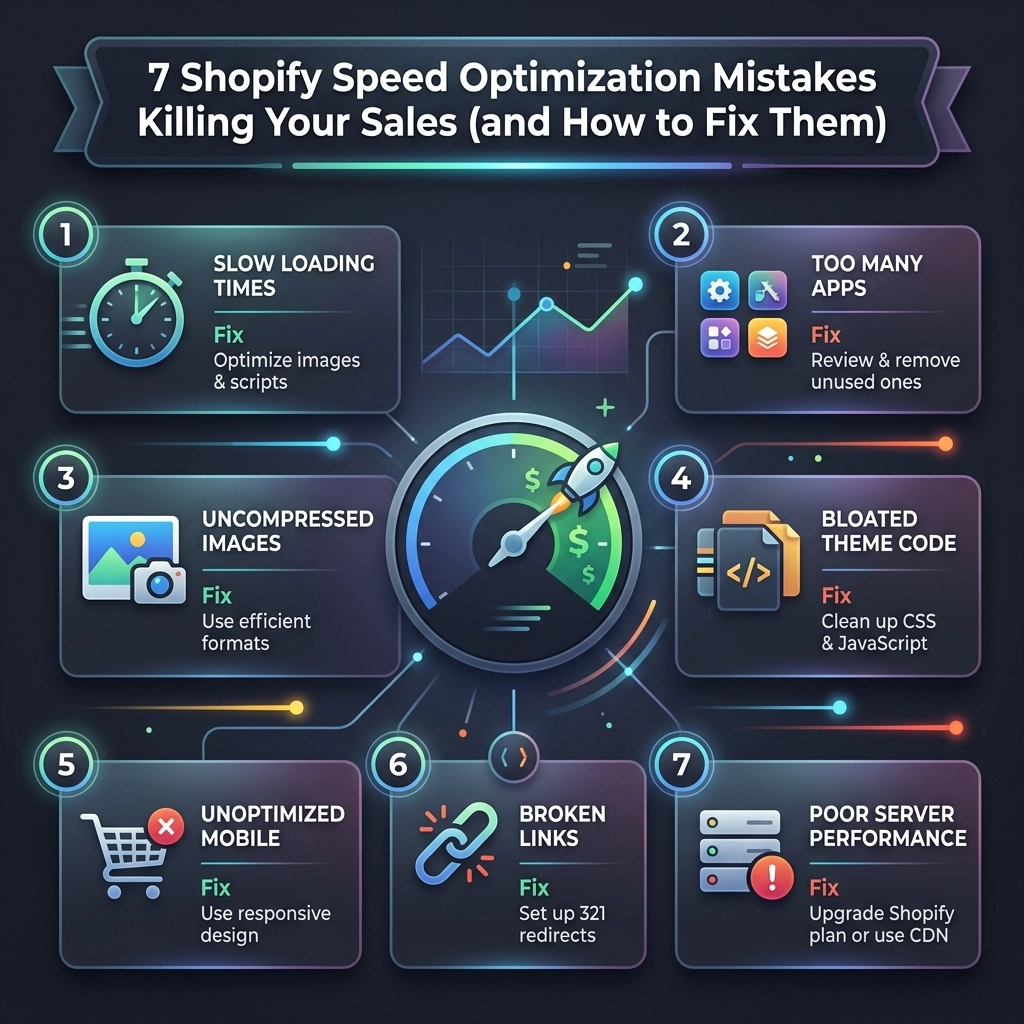
As a specialist Shopify agency, we see the same technical bottlenecks over and over again. Most store owners focus on the "look" of the site while inadvertently sabotaging the performance. Here are the seven most common Shopify speed optimization mistakes we see in 2026 and, more importantly, exactly how you can fix them.
1. The "App for Everything" Trap
It’s tempting. You see a cool "Spin the Wheel" app or a social proof bubble, and you hit install. Before you know it, your store is running 25 different apps.
The Problem
Each app you install adds its own JavaScript and CSS files to your site's header or footer. Even if the app is "small," it forces the browser to make additional requests to external servers. This increases your Total Blocking Time (TBT), making the site feel sluggish or "frozen" while the scripts load.
How to Fix It
- Audit your apps monthly: If you haven't looked at an app's analytics in 30 days, delete it.
- Identify "Ghost Code": Simply hitting "Uninstall" often leaves behind messy Liquid code in your theme. You need a developer to clean up the
theme.liquidand snippet files. - Consolidate functionality: Instead of using five different apps for rewards, reviews, and upsells, look for all-in-one platforms or, better yet, custom Shopify development to build these features directly into your theme.
Pro Tip: Use the "Network" tab in Chrome DevTools to see which apps are taking the longest to respond. You might be surprised to find that a tiny "currency converter" is adding 1.5 seconds to your load time.
2. Neglecting Image Compression and Modern Formats
Fashion and beauty brands thrive on high-quality visuals. You want your customers to see every stitch of that fabric or the shimmer of that highlighter. However, uploading raw, 5MB 4K images is the fastest way to kill your mobile conversion rate.
The Problem
Large file sizes are the #1 cause of high Largest Contentful Paint (LCP) scores. If your hero image is 2MB, the user is staring at a blank white screen for seconds before anything appears.

How to Fix It
- Switch to WebP or AVIF: These modern formats offer superior compression compared to JPEG or PNG without losing visible quality.
- Implement Lazy Loading: Ensure that images "below the fold" (the parts of the page the user can't see yet) only load when the user scrolls down to them.
- Use CDN-side Resizing: Use Shopify’s built-in image filters to serve the exact size needed. Don't load a 2000px image into a 300px thumbnail slot.
3. Using Heavy, Feature-Bloated Themes
Many premium themes marketed on the Shopify Theme Store are built to appeal to everyone. They come packed with sliders, carousels, and pop-ups that you might never use, but the code for those features loads on every single page.
The Problem
This "Kitchen Sink" approach leads to massive CSS and JS files. Even if you disable a feature in the theme editor, the underlying code often still loads in the background, weighing down your performance.
How to Fix It
- Start with "Dawn" or a Headless approach: Shopify’s OS 2.0 themes (like Dawn) are built for speed. If you are a high-growth brand, consider custom Shopify speed optimization by stripping a theme down to its bare essentials.
- Minify your code: Ensure your CSS and JavaScript are minified (removing spaces and comments) to reduce file size.
- Prioritize Critical CSS: Inline the CSS required to render the top of the page so the user sees content immediately, while the rest of the styles load in the background.
4. Poor JavaScript Execution and Render-Blocking Scripts
JavaScript is the engine that makes your site interactive, but too much engine weight makes the car slow. In 2026, Google’s Core Web Vitals place a heavy emphasis on Interaction to Next Paint (INP).
The Problem
When a browser hits a <script> tag, it stops everything else to download and execute that script. If you have five tracking pixels and three chat widgets loading at the top of your page, the actual "content" of your store is stuck in a traffic jam.
How to Fix It
- Deffering and Asyncing: Use the
deferorasyncattributes on non-critical scripts. This tells the browser to keep loading the page and handle the script later. - Delay Execution: For things like Live Chat widgets, don't load them until the user actually moves their mouse or scrolls. There is no reason to load a chat bot the millisecond a page opens.
- Audit Third-Party Scripts: Do you really need Pinterest, TikTok, Facebook, and Google tracking all firing simultaneously on the home page? Use a tag manager to streamline this.
Key Insight: Every third-party script you add is a "speed debt" you are taking out against your conversion rate. Spend that debt wisely.
5. Ignoring the Mobile-First Reality
We often see founders reviewing their site on a high-end MacBook Pro with gigabit internet. Your customers, however, are likely on a mid-range iPhone using a spotty 4G connection while sitting on a bus.
The Problem
A site that feels "okay" on desktop can be unusable on mobile. High-resolution video backgrounds and complex hover effects often break the mobile experience and cause massive layout shifts (CLS).

How to Fix It
- Design for 3G speeds: Use Google PageSpeed Insights and set the throttling to "Slow 4G." If it’s slow there, it’s slow for your customers.
- Eliminate Layout Shifts: Give your images and video containers explicit width and height aspects. This prevents the page from "jumping" as images load, which is a major frustration for mobile users.
- Simplify Mobile Navigation: Heavy mega-menus can be JavaScript nightmares on mobile. Keep it light and functional.
6. The Custom Font Clutter
Brand identity is everything in the streetwear and jewelry niches. You want that specific, edgy font that reflects your vibe. But fonts are hidden speed killers.
The Problem
If you are loading four different weights of a custom font from a third-party server (like Adobe Fonts or Google Fonts), you are adding several hundred kilobytes to your load time. Even worse, you might see a "flash of unstyled text" where the font changes suddenly after a few seconds, which looks unprofessional.
How to Fix It
- Stick to 1-2 fonts: Use one for headings and one for body text.
- Self-host your fonts: Upload your font files directly to Shopify’s files section. This allows them to load from the same CDN as your site, reducing DNS lookup time.
- Use Font-Display: Swap: This CSS property tells the browser to show a system font immediately and swap in your custom font once it's ready. No more invisible text!
7. Mismanaging Video Content
Video is the king of engagement in 2026. A video of a model wearing your jewelry or a "behind the scenes" of your fashion shoot can skyrocket interest. But video is also the heaviest element you can put on a webpage.
The Problem
Autoplaying, unoptimized MP4 files used as hero backgrounds can easily be 20MB+. This will tank your speed scores and eat up your users' data plans.

How to Fix It
- Host on YouTube or Vimeo? Think again: For background loops, hosting on Shopify or a dedicated video CDN is often faster than the overhead of a YouTube iframe.
- Compress, compress, compress: Use tools like Handbrake to get your video files as small as possible.
- Use the
posterattribute: Always provide a static image (poster) that loads instantly while the video buffers in the background.
The Thriftizer Approach to Performance
At Thriftizer, we don't just "fix" speed; we engineer performance. We believe that a high-growth brand shouldn't have to choose between a beautiful aesthetic and a lightning-fast experience. Whether you are scaling a boutique jewelry line or managing a global streetwear empire, your infrastructure needs to be rock solid.
We specialize in deep-level Shopify development that removes the "bloat" and replaces it with streamlined, custom-coded solutions. Our team understands the nuances of Shopify Plus features and how to leverage them for maximum efficiency.
If you are tired of losing sales to a slow loading bar, it might be time to bring in the experts. You can check out our Shopify Expert profile to see how we've helped other brands achieve peak performance.
Next Steps: Your Speed Optimization Checklist
Ready to take action? Don't try to fix everything at once. Start small, stay creative, and follow this sequence:
- Benchmark: Run your site through Google PageSpeed Insights and Shopify's built-in speed report. Note your current scores.
- The Great App Purge: Delete any app you haven't used in the last month.
- Image Audit: Use a tool like Crush.pics or manual compression to shrink your top 10 most visited pages' images.
- Font Check: Ensure you aren't loading more than two custom font families.
- Clean the Code: Reach out to a professional Shopify agency like Thriftizer to perform a deep code audit and remove "ghost code" from uninstalled apps.
- Monitor: Check your conversion rates. As your speed goes up, your bounce rate should go down, and your sales should start to climb.
Never ever think of giving up on your store's performance. It is the foundation upon which your digital marketing efforts are built. A fast site is a profitable site. Start optimizing today!