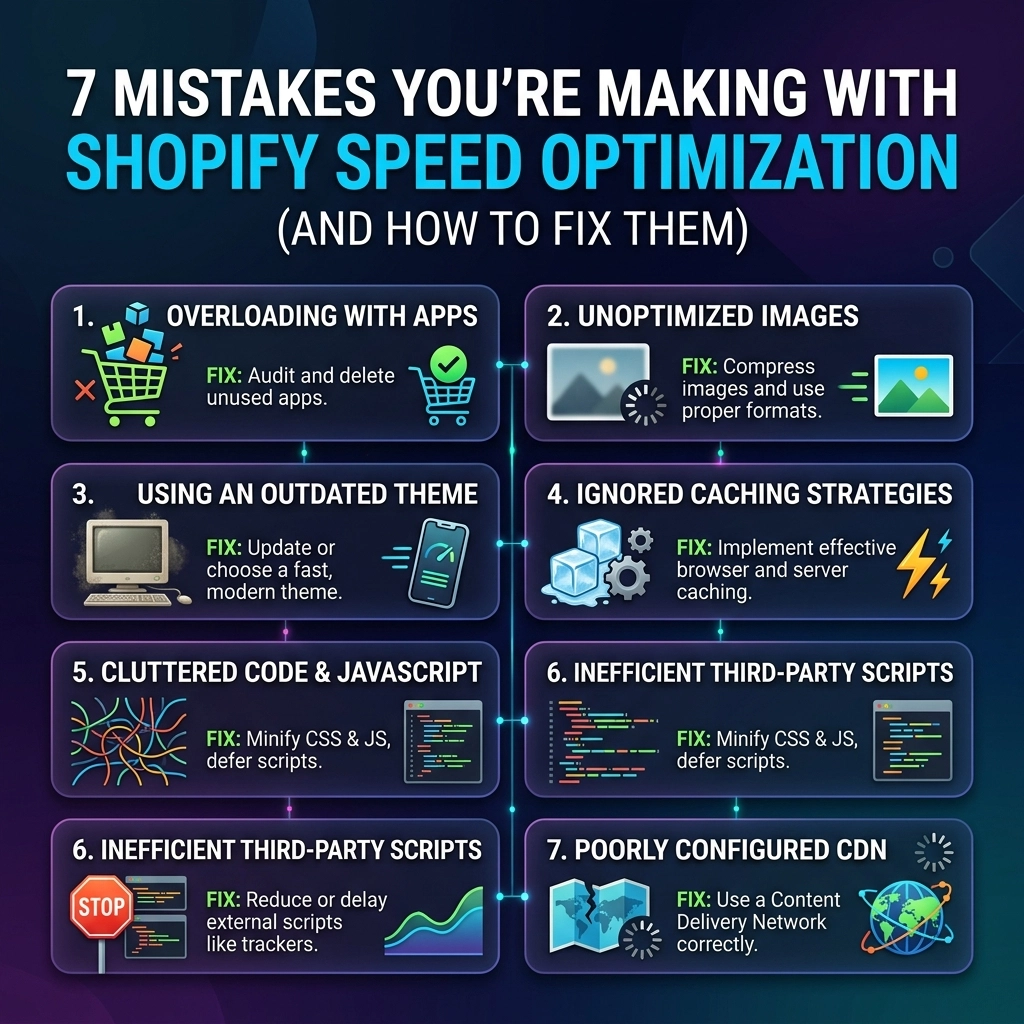
In the high-stakes world of online fashion and beauty, your website is your digital flagship store. You’ve spent thousands on professional photography, curated a stunning collection, and mastered your brand voice. But there is a silent killer lurking in your backend: latency.
If your store takes more than three seconds to load, you aren’t just losing clicks; you’re literally handing your customers over to your competitors. For high-growth D2C brands, Shopify speed optimization isn't a "nice-to-have" technical chore: it is a core growth strategy. Every millisecond shaved off your load time directly correlates to an increase in conversion rates and a decrease in ad spend waste.
At Thriftizer, we see the same patterns over and over. Brands prioritize aesthetics so heavily that they accidentally sabotage their performance. This guide breaks down the seven most common mistakes merchants make and provides the exact framework our Shopify agency uses to fix them.
1. The "High-Res" Trap: Uploading Unoptimized Imagery
For a streetwear or jewelry brand, visual fidelity is non-negotiable. You want the customer to see every stitch and every sparkle. The mistake? Uploading raw, 5MB JPEGs directly from your photographer’s drive.
The Problem:
Large image files are the #1 reason for slow Shopify stores. When a mobile user on a 4G connection hits your home page and has to download 20MB of "hero banners," they will bounce before the first image even renders.
How to Fix It:
- Switch to WebP: This modern image format provides superior compression without losing quality.
- Implement Lazy Loading: Ensure that images "below the fold" only load when the user scrolls down to them.
- Use Responsive Sizing: Don't serve a 2000px wide image to a phone that is only 400px wide.
- Compression is King: Use tools to strip unnecessary metadata from your files.

2. App Addiction and "Ghost Code"
It starts with a pop-up app. Then a loyalty program. Then a size guide, a countdown timer, and a heat-mapping tool. Before you know it, your store is running 25 different apps, each injecting its own external JavaScript.
The Problem:
Even if you "delete" an app from your Shopify dashboard, it often leaves behind "ghost code" in your theme.liquid or other snippet files. This leftover code continues to make requests to external servers, dragging down your performance for a feature you aren’t even using.
How to Fix It:
- Perform a Script Audit: Go through your theme code and look for scripts from apps you no longer use.
- The "One-In, One-Out" Rule: Before adding a new app, ask if it’s absolutely essential for revenue. If it is, see if you can remove another one to compensate.
- Go Custom: For high-growth brands, a custom-coded solution by a Shopify development expert is often faster than a bulky, one-size-fits-all app.
3. Choosing Bloated "Feature-Rich" Themes
Many merchants get lured in by "all-in-one" themes that promise 50+ built-in features like parallax scrolling, complex animations, and multi-level mega menus.
The Problem:
To make those 50 features work for everyone, the theme developer has to include massive CSS and JavaScript files. Your store might only use five of those features, but your customers still have to download the code for all fifty.
How to Fix It:
- Start Lean: Choose a theme built on Shopify Online Store 2.0 (OS 2.0) principles, which are designed for performance.
- Disable What You Don't Use: If your theme has a built-in "Quick View" or "Image Zoom" that you don't like, make sure the code for it isn't still loading in the background.
- Custom Theme Development: If you are a high-volume brand, consider a headless approach or a bespoke theme tailored exactly to your needs.
Pro Tip: Always check a theme's demo on Google PageSpeed Insights before purchasing. If the demo store is slow, your store will be slower.
4. The Mobile-Second Mindset
We often build and review our stores on 27-inch 5K monitors with high-speed office Wi-Fi. However, over 68% of eCommerce orders now happen on mobile devices, often on spotty cellular connections.
The Problem:
A design that looks "clean" on a desktop can be a nightmare on mobile. Excessive pop-ups, heavy video backgrounds, and complex navigation elements can make the mobile experience feel sluggish and unresponsive.
How to Fix It:
- Mobile-First Design: Optimize your site for the smallest screen first.
- Kill the Pop-up Overload: If you have an email capture, a cookie consent, and a "someone just bought this" notification all firing at once, you’ve blocked the entire screen.
- Touch Targets: Ensure buttons are easy to click and that there is enough "white space" to prevent accidental clicks that trigger new page loads.

5. Logic Collisions: Stacking Discount and Logic Engines
Fashion brands love a good sale. BOGO offers, tiered discounts, and "Gift with Purchase" logic are essential for moving inventory.
The Problem:
When you stack multiple apps to handle different types of discounts, they often fight each other during the checkout process. This creates "logic collisions" where the "Add to Cart" button hangs for several seconds while the apps calculate which discount applies. During peak events like Black Friday, this can lead to total site crashes.
How to Fix It:
- Use Shopify Functions: Leverage Shopify's native discount logic whenever possible.
- Consolidate Your Tech Stack: Use one robust app for all your promotional needs rather than three small ones.
- Pre-calculate Logic: Work with a Shopify Plus agency to hard-code logic into your cart scripts for faster processing.
6. Over-Reliance on External Tracking and Pixels
In the age of data-driven marketing, you likely have pixels for Meta, TikTok, Google Analytics, Pinterest, and Pinterest's cousin.
The Problem:
Each of these pixels is a third-party script. If Meta’s server is having a slow day, your page load might hang while waiting for that pixel to "fire." This is especially true for synchronous scripts that block the rest of the page from rendering.
How to Fix It:
- Use Google Tag Manager (GTM): Consolidate your pixels into a single container to manage how and when they fire.
- Server-Side Tracking: Move your tracking logic away from the browser and onto the server to take the load off the user's device.
- Audit Your Pixels: If you haven't run a Pinterest ad in two years, why is that pixel still loading on every page?

7. The "Set It and Forget It" Fallacy
Many brands treat Shopify speed optimization as a one-time project. They hire an expert, get a high score, and then never look at it again.
The Problem:
Site speed is dynamic. Every time you add a new product, install a marketing app, or tweak your CSS, your speed changes. Performance "rot" is real, and it happens faster than you think.
How to Fix It:
- Establish a Performance Budget: Decide on a maximum page weight (e.g., 2MB) and a minimum speed score. If a new feature pushes you over that budget, you can't add it until you optimize something else.
- Monthly Audits: Schedule a recurring technical check-up.
- Core Web Vitals Monitoring: Keep a close eye on your Google Search Console to see how actual users are experiencing your site speed over time.
Pros and Cons: DIY vs. Hiring a Shopify Agency
| Approach | Pros | Cons |
|---|---|---|
| DIY Optimization | Cost-effective; you learn your store's backend. | High risk of breaking theme code; time-consuming; limited to app-based fixes. |
| Hiring an Agency | Expert-level code minification; guaranteed results; focuses on long-term scalability. | Higher upfront investment; requires finding a trusted partner. |
The "Never Give Up" Mindset for Scaling
Optimization can feel like a game of Whac-A-Mole. You fix one thing, and another metric drops. Never ever think of giving up. The process of refinement is what separates a $1M brand from a $100M brand. Start small, stay creative with your solutions, and remember that every small tweak adds up to a massive impact on your bottom line.
If you find yourself overwhelmed by liquid files and API rate limits, remember that your job is to build the brand, and our job is to build the tech. As a recognized Shopify Expert, Thriftizer helps fashion and beauty brands cut through the noise with high-performance custom development.

Your Next Steps: A 5-Day Speed Sprint
Ready to take action? Follow this checklist to start seeing results this week:
- Day 1: Audit. Run your site through Google PageSpeed Insights and Shopify's built-in speed report. Note your baseline.
- Day 2: Image Purge. Use a tool like Crush.pics or Pixc to compress every image in your library.
- Day 3: App Inventory. List every app you have installed. Uninstall at least two that aren't providing a clear ROI.
- Day 4: Ghost Code Cleanup. Search your
theme.liquidfor scripts related to uninstalled apps and delete them (backup your theme first!). - Day 5: Mobile Review. Browse your site on an older smartphone using a 3G connection. If it’s frustrating for you, it’s frustrating for your customers. Identify the biggest "clog" and fix it.
Speed is the foundation of trust. When your site is fast, it tells the customer that you are professional, reliable, and respect their time. Identify the gaps in your current performance today, and automate the workflow to ensure you stay fast as you scale.
Need a deeper technical dive? Contact Thriftizer today for a comprehensive speed audit and custom development plan tailored to your brand's unique needs.